SVG Working Group Meeting Report

The SVG Working Group had a three day Face-to-Face meeting in Hamburg this week. The last day was devoted to working with the CSS Working Group on joint items. I attended most of it via telephone. A lot of the discussions had to do with stategies for getting SVG2 out or with technical stuff. But there were a number of things that might be of interest to Inkscape users and others.

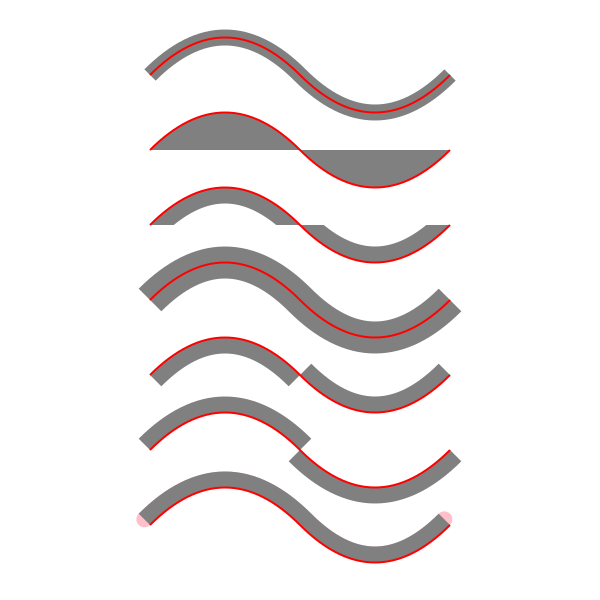
  • Paint Order: It was resolved that the SVG will allow the order in which fill, stroke, and markers for a single graphics element are painted to be specified. At the moment the stroke is always painted on top of the fill, and markers on top of everything. Being able to paint the fill on top of the stroke is quite important for text.
    The letter 'B' with normal fill order, fill on top, and markers underneath.

    A letter with various paint orders.

  • Marker Clipping: At the moment, in order to avoid the path from showing under the tip of an arrowhead, the arrowhead must extend past the end of the path. In Inkscape, this prevents things like snapping the arrow tip to a line since the path end is not at the same place as the arrow tip. One of the SVG group members is going to work out a way to specify a clipping region for a marker that would apply to the path below thus eliminating this problem.
    Marker clipping applied to an arrow and to a circle.

    Demonstration of the use of marker clipping. The red dotted line indicates the clipped area. Clipping only applies to the path the marker is attached to.

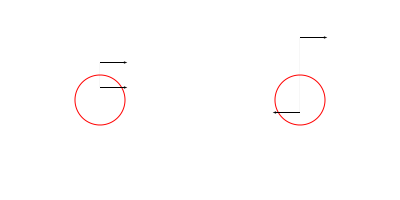
  • Marker positioning: The current spec only allows markers placed at the ends of a path or at nodes. The WG agreed that more complex marker placement would be supported, For example one will be able to alternate between two markers and place them every 20px along a path.
    A path with two alternating markers placed at equal intervals.

    A path with markers. The markers are placed by distance along path.

  • Masking: Masks will gain an attribute to specify whether to use alpha or luminance in the masking calculation.
  • Screening Filter Primitive: The group was supportive of my proposal to add a screening filter primitive. It would not be added to the SVG2 specification directly but to the CSS/SVG joint filters specification that has been split out from the SVG spec.
  • Gradients Along/Across Paths (and Variable Stroke Opacity): While group members were interested in this, it turns out to be quite difficult to implement so the group pushed this off to the future. (The Adobe rep said that it was a real pain to export it to other formats.) If Inkscape were to support this somehow (mesh fallback?), it would help push it into the spec.
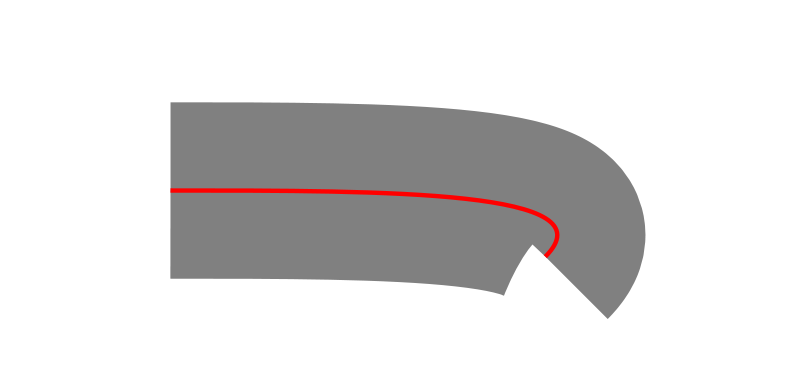
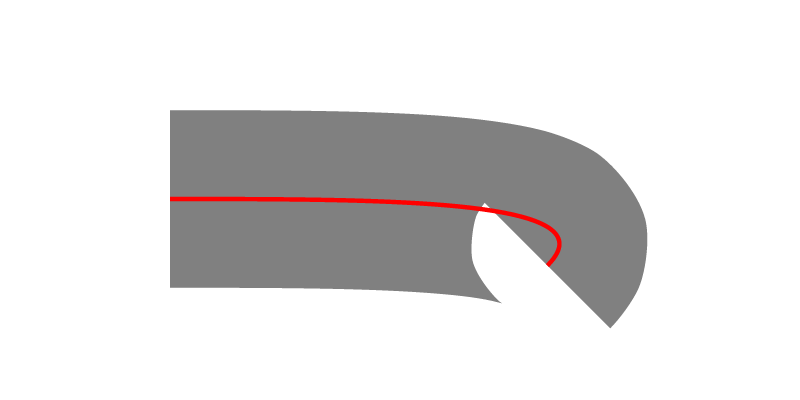
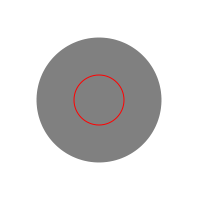
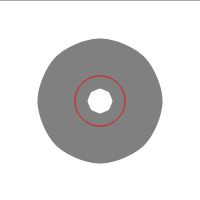
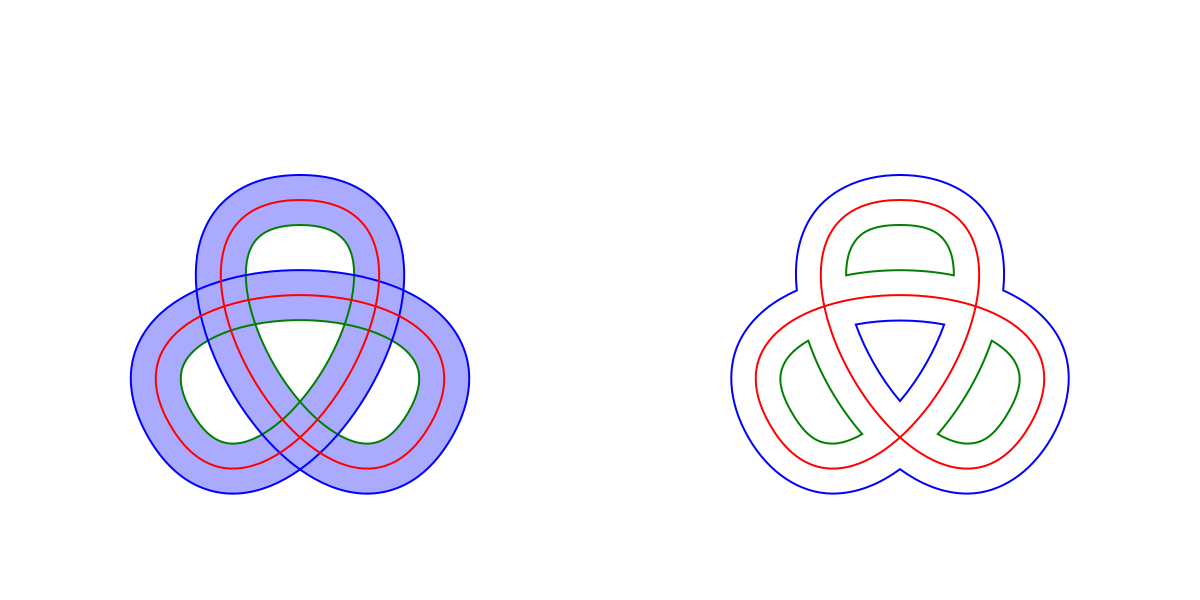
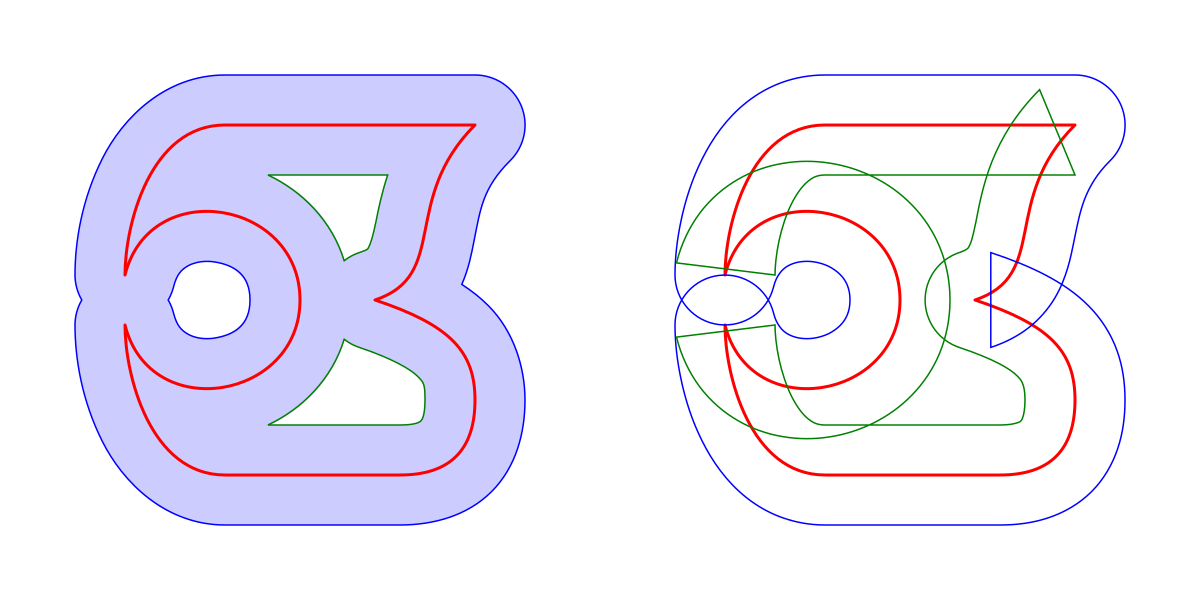
  • New Stroke Join: Coming from Johan Engelen’s Power Stroke work inside Inkscape, I propsed that the SVG2 specification add a new stroke-join option. Currently you have the choice of beveled, rounded, or mitered. When a path contains two curved segments joined at a sharp point, the mitered option doesn’t look so good. Johan’s Power Stroke allows an “extrapolated” join where the curvature of the paths is taken into account. The SVG WG liked this idea and approved it subject to defining the math needed precisely. One factor in its adoption will be than none of the graphics libraries used by the browsers includes such a join.
    A demonstration of the different existing SVG join styles and the proposed new style.

    The existing join styles with the proposed extrapolated join style.

Posted in Inkscape | Leave a comment

A Spinning Newspaper or a Study of HTML vs. SVG

While wandering through the Web, I came across a simple but nice demo of CSS3 Animations: a spinning newspaper cover like one would see in an old black and white movie. It would be just perfect for a personal website I have but there is one problem: the example uses an image, JPEG to be exact. I want to be able to easily change the text. No problemo… I can just substitute a <div> for the <img> element and then fill that how I want.

To begin, I followed the demo example and used the following CSS:

.newspaper {
animation-name: spinning;
animation-duration: 1s;
animation-timing-function: ease;
animation-iteration-count: 1;
animation-direction: normal;
}
@keyframes spinning {
0% {width:10px; height: 7px; transform:rotate(0deg);}
100% {width:468px; height: 330px; transform:rotate(1440deg);}
}

One thing to note is that this CSS won’t actually work in any browser at the moment. Firefox and Webkit based browsers support CSS3 Animations but only using prefixes (i.e. -moz-, -webkit-). While prototyping and testing in multiple browsers I found it convenient to use the “-prefix-free” JavaScript code that automatically adds the necessary prefixes (read the documentation about how to use it locally with Chrome and Opera). After you get everything working, you can manually add the prefixes if you need to avoid using JavaScript.

I added a <div> for the newspaper name and immediately came across the first problem. The text doesn’t scale. Following the given example, I adjusted the @keyframe to include “font-size: 0%” and “font-size: 100%”. This didn’t work as expected. The fonts scaled alright, but as they scaled the font size was being rounded to an integer. This lead to discrete jumps in font size which caused visable effects in the text layout.

I have to admit my CSS box-model fu is sadly lacking. I was having trouble getting everything to layout correctly. Later I realized that I had introduced a typo in my CSS style sheet. <rant>I personally hate how HTML5 has gone the route of allowing errors to go unnoticed. Coming from a programming background, I much prefer that my HTML/CSS crashes and burns when there is a syntax error. I’ve wasted more time trying to understand why something isn’t working the way I think it should only to discover later I was missing a simple colon.</rant>

Given the frustrations I was having with CSS layout and with the font-sizing problem (which was a show stopper), I decided to try inline SVG for the layout. This worked out suprising well and within a few minutes I had the layout I wanted. (It helped that I was able to recycle some of the CSS classes I had already defined.) I still had a problem with how the animation was working. The transformation origin was moving so the spinning was starting around the top-left corner. At this point I realized that the @keyframes CSS was not optimal. There was no need to change the width, height, and font-size when a scaling could be simply added to the transform. I change the appropriate lines to:

0% { transform:scale(0) rotate(0deg);}
100% { transform:scale(1) rotate(1440deg); }

Now the amination worked as expected.

Once I got the SVG version working, I went back and tackled the CSS/HTML version. It took quite awhile, but I finally got it to look (almost) like the SVG version. Having completed that exercise I can give the following summary:

SVG Advantages:

  • Easy layout. No dealing with collapsing margins, shifting borders, paddings, floats, vertical centering hacks. The one problem I came across was that paths must be defined in terms of user units (pixels) and not the percentages that I used everywhere else.
  • Easy to add vertical separators of random length.

CSS Advantages:

  • SVG does not have text wrapping but one can use a <p> inside <foreignobject>.
  • SVG text cannot automatically be vertically centered. Changing font-size requires manually shifting text.

Here are the final figures. Note that these are just PNGs. For a look at the spinning SVG and HTML covers go to my website (it is too difficult to get these to work inside the blog).

SVG/CSS

Newspaper cover mockup.

HTML/CSS

Newspaper cover mockup.
Posted in CSS, SVG | Comments Off

Animation in SVG and CSS

David White created a nice SVG background he calls “The digital river” with animated circles. Unfortunately it only works in Firefox due to incorrect handling of events inside the <use> tag (which allows cloning of objects, in this case a circle) by other browsers. The other browsers apply mouse events to the referenced object rather than just the cloned objects.

David’s SVG uses SMIL for animation. Unfortunately, Microsoft has declared in no uncertain terms that it will not implement SMIL in their browers. They see CSS Transitions and CSS Animations as the proper way forward for supporting animation in SVG however no browser at the moment supports this although all the browsers do support experimental (read: prefixed) CSS transitions and animations on HTML elements.

Here are two experiments inspired by David’s work. The first uses CSS with CSS Transitions, the second SVG with SMIL. Pass your cursor over the circles. The CSS version uses rounded corners on <div>s to simulate circles. It has the advantage of cross-browser support (except Firefox messes up the first row of circles). The SVG version only works properly in Firefox. It is more powerful as you can easily scale circles or use other shapes.

CSS Ripples


You must be reading this via Graphics Planet. Go to my blog site to see the demos. Graphics Planet strips out the styling needed to make the demos work.

SVG Ripples


Your browser does not support SVG! Too bad.

Posted in CSS, Inkscape, SVG | Comments Off

CSS3 Transforms and Animation Experiments

I’ve been experimenting with CSS3 3D Transforms and Animations. Currently only Firefox and WebKit browers support these features.

Don’t use these in production. The specs are not finalized!

Note to those reading this in Graphics Planet… the feed strips out the style elements that are required for the animated image.

No JavaScript used, only CSS with inlined SVG.

You can see more examples including a stereo version of the dodecahedron at
my SVG and CSS page.


You must be reading this via Graphics Planet. Go to my blog site to see the animation. Multicolor Dodecahedron
Posted in Inkscape, SVG | Comments Off

SVG 2: Now is the time to act!

The SVG working group is close to finishing a review of all the proposed new features for SVG 2. This is the time to make your voice heard if you want something added to the specification!

While a final SVG 2 standard is probably two years away, things can show up in browsers earlier. SVG 2 will consist of a core standard plus modules and references to other standards, especially those from CSS 3, some of which are already approved or are close to being approved. You can now use CSS 3 Colors inside SVG in browsers. This allows, for example, describing a color in terms of HSL as I’ve done in the example below:


   HSL

Appearing relatively soon will be CSS 3 Transforms which includes both 2D and 3D transforms. All the major browsers already support 2D transforms in HTML with Firefox and Chrome supporting some 3D transforms (at the moment one must use browser specific prefixes but that should change in the next couple of months). Expect this support to extend to SVG in the near future. (Hover over the box below! All done with CSS!)


Front
Right
Back
Left
Top
Bottom

There are a number of items that Inkscape users and developers have expressed interest in seeing added to the SVG specificaition. If you have something you want to see added, leave a comment. There are some things that the SVG working group is open to adding but nobody in the group is willing to spend much time on them. If someone in the community were to step up, the likelihood that they would be added would be much greater. One item in this catagory is connectors.

Posted in Inkscape, SVG | 10 Comments

Tensor Meshes Revisited

When I first proposed adding meshes to the SVG standard the SVG working group looked at the question of Coons patch vs tensor patch meshes. A tensor patch adds four additional control points to a Coons patch. These control points influence how the color is spread inside the patch. The group decided that the added complexity of the tensor patch was not worth the benefit gain. I am now revisiting this decision. In a previous blog I discussed the problems caused by a lack of smoothness across patch boundaries. At first it didn’t seem like having tensor control points would help but now I realize that in some limited cases they can be of great benefit.

Consider the following four patch mesh:

A 2x2 patch mesh showing effect of lack of smoothness across boundaries.

A 2×2 Coons Patch mesh. The outer corner colors are black. The center corner is white.

The first thing that one sees is a cross pattern. This is due to a lack of smoothness across the patch boundaries. In the following figure one can see the color profile for two of the patches that clearly illustrates the sharp change in the color derivative at the patch boundary.

A diagram of the color profile for two of the patches in the above mesh.

The color profile for two of the patches in the previous figure. The height of the surface is proportional to the white level. The red line illustrates the profile along a diagonal line in one of the patches. The blue line shows the required profile if the profile is to be rotationally symmetric around the center point.

By moving the tensor mesh points it is possible to better approximate a rotationally symmetric profile around the center point, reducing the “cross” artifact.

A 2x2 patch mesh where tensor control points are used to smooth the color profile across patch boundaries.

Tensor control points have been used to smooth the color profile.

It is not possible to completely remove the cross using tensor control points. One also still has a bright spot at the center point which is not what one wants when trying to illustrate a diffuse reflection of light off a curved surface. To get a smoother profile one needs to add more patches.

A 4x4 patch mesh with a smoother color profile.

A 4×4 Coons patch mesh is used to produce a smoother color profile.

So adding tensor control points is useful but is not a complete solution to smoothness. I still haven’t made up my mind about their cost/benefit value. Feedback would be appreciated.

Posted in Inkscape | Comments Off

Mesh Gradients in SVG

I’ve been working on adding Mesh Gradients to the SVG standard and in principle they have been accepted as part of SVG 2. In particular, the SVG working group has approved the addition of Coons Patch mesh gradients. This type of mesh is powerful enough to handle the requirements for most advanced gradients use cases and at the same time is a convenient form for use in content creation. Coons Patch meshes are included in the PostScript and PDF standards (Type 6 Shading) and the Cairo rendering library supports them in trunk. I’ve added support for meshes to a my own branch of Inkscape for testing purposes.

The SVG working group has identified one problem with the meshes: It is not always possible to have smooth color transitions across mesh boundaries. To understand why this can be a problem, one must understand how the meshes work.

A Coons Patch mesh is composed of an array of Coons Patches. A Coons Patch consists of four Bézier curves along the sides with colors defined at each corner. The color of any point inside the patch is determined by a two-dimension bi-linear interpolation of the corner colors followed by a geometric mapping defined by the Bézier patch sides.

Left: square showing color interpolation. Right: patch showing result of mapping.

Left: Color defined by a two-dimension bi-linear interpolation of the corner colors. Right: the color interpolation mapped to the patch region. The Bézier end points (corners) and handles are shown as diamonds and circles respectively.

The key word in the above description is “linear”. Working in one dimension, linear interpolation between two colors works exactly the same as in the linear gradient of SVG 1. A patch corresponds to the interval between two color “stops”. The linear gradient in the following figure consists of three stops or two “patches”. The color transition between the two patches is continuous but not smooth.

Top: a three stop linear gradient. Bottom: the RGB color profile of the gradient.

Top: A three stop gradient with stop colors blue, purple, and yellow. Bottom: Plots of the red, green, and blue profiles of the gradient.

Lack of smoothness in some cases can lead to visual artifacts as illustrated in the following figure:

Six linear gradients with the second and fourth stops in different places.

Linear gradients consisting of five stops. The outer two are black, the center one is white, and the remaining two are set to 90% white. The position of the 90% white stops are different for each gradient. The red line shows the black to white profile for each gradient.

As one can see in the above linear gradients, the eye is fooled into thinking that the location of the 90% white stop is whiter than the areas immediate right and left of the stop. This is due to the Mach Banding effect.

With meshes, one can move the Bézier “handles” to alter the color profile. This is equivalent to stretching or shrinking a section of the patch. If the side is linear, moving the handles will not change the shape of the patch but will change the “speed” of the curve’s parameterization. The following figure shows how moving the handles can yield a smooth transition and eliminate the Mach Banding:

Three gradients illustrating how to smooth a color transition.

The top gradient is a linear gradient. The middle gradient is a Coons Patch mesh gradient that duplicates the linear gradient. The location of the Bézier handles (circles) are shown in blue. They are at their default positions spaces one-third of the way between the corner points (squares), corresponding to a linear interpolation. The bottom gradient is a Coons Patch mesh gradient where the top and bottom handles have been moved to smooth out the transition across the patch boundaries. The 90% stop has been changed to 80%. The purple line on the bottom gradient shows the new color profile.

As illustrated above, it is possible in some cases to obtain smooth transitions with Coons Patch mesh gradients across patch boundaries. However there are cases where it is not possible. Consider the center “stop” in the above figure. No matter how you manipulate the handles you can not achieve a smooth transition at this point. The derivative of the color profile cannot be made to be zero. The following figure shows some of the profiles available for one patch:

Three gradients showing the range of allowed color profiles when moving Bézier handles.

Three Coons patch meshes are shown where the left corners are black and the right corners are white. Overlaid each gradient is the color profile determined by the handle placements of the top and bottom Bézier curves. The top gradient shows the color profile with the default handle placement (i.e. when a curve is defined by a “lineto”). The Bézier handles of top and bottom of the mesh are shown in blue while the color profile with the profile’s effective Bézier handles are shown in red. The middle gradient shows the the color profile when the handle “lengths” are zero (i.e. when the handles are placed on top of the corners. The bottom gradient shows the color profile when the handles are placed over the opposite corners.

Note that in the above figure the handles of the effective Bézier curve color profile are constrained to horizontal lines one-third of the distance between the top and bottom range of the color profile. As a result, one can never have a profile where the derivative of the color change at a boundary is zero. Also note, that while the handles can be moved outside the patch region to the left or right, a discontinuity in the color profile will result as the effective profile Bézier will overlap itself.

Another case where it is impossible to obtain a smooth transition is when the different primary colors (red, green, blue) have different profiles. In general, only the profile of one color can be made smooth.

So how do Adobe Illustator and Corel Draw get smooth transitions? I don’t have either one so I can’t check personally but from a paper by Sun, Liang, Wen, and Shum it appears that Adobe Illustrator and Corel Draw use a monotonic cubic spline interpolation instead of a linear interpolation. Then, when exporting to PostScript or PDF, a single Illustrator or Corel Draw patch gets exported as multiple Coons patches inorder to approximate the smooth transitions.

The question then is: should the SVG standard support the Coons Patch meshes with bi-linear interpolation or should it specidfy a more complex interpolation. My inclination is to leave the interpolation as bi-linear and follow Adobe’s and Corel’s lead and let the authoring software handle smoothing out transitions when necessary. This keeps compatability with existing standards and keeps the definition of the patches simpler.

More details about meshes in SVG can be found at my
Coons Patche Meshes page.

Posted in SVG | 2 Comments

SVG Kaleidoscopes

I’ve always loved kaleidoscopes. Here are a couple made by using Inkscape’s Tiled Clone dialog with hand animation. The animation is done with SMIL rather than JavaScript. The animations work in Chrome, Opera, and Firefox (although the performance of the latter is a bit poor). They will not work in IE as it does not (and never will according to the IE developers) support SMIL animation. (Why SMIL? It is easier to do simple animations and doesn’t get disabled by browsers due to security concerns.)
Clicking on the kaleidoscopes will take you to a larger version.

I’ve disabled the animation here as they eat too many CPU cycles. Click on images to go to full animated versions.


A simple Kaleidoscope animation.


A simple Kaleidoscope animation.

Posted in Inkscape, SVG | Comments Off

SVG and Browser Address Bar Trick

During a recent SVG Working Group meeting a question arose about current browser support for a particular SVG syntax. One of the group members pasted a quick one-line test case into the IRC meeting log and we were able to verify browser support by just pasting the line into the address bar. Try pasting:

data:image/svg+xml,<svg xmlns="http://www.w3.org/2000/svg">
<rect x="20" y="20" width="100" height="50" fill="red"/></svg>

into the address bar of your browser. This works in Firefox, Opera, and Chrome. I haven’t checked IE.

Posted in SVG | 1 Comment

Warped Text in Inkscape

I’ve been playing with different ways that Inkscape can be used to warp text and thought I would share a few images. This was all motivated by a discussion during an SVG working group meeting a couple of weeks ago on what the proper way to stretch glyphs when placed along a path. (At the moment only Opera can do it and it uses a rather simple algorithm.) You can find a more detailed discussion of this topic at my web site.

The most successful experiments were those using the Envelope Deformation Live PathEffect. Only the top and bottom control paths were used (the right and left paths were disabled). For the text within circles, the circles were drawn using the Arc/Circle tool and then pasted in using the LPE editor. Note, you need to be using a modern browser capable of displaying SVG.

Text warped with Envelope LPE.
Posted in Inkscape, SVG | Comments Off